
What Is MyPipette?
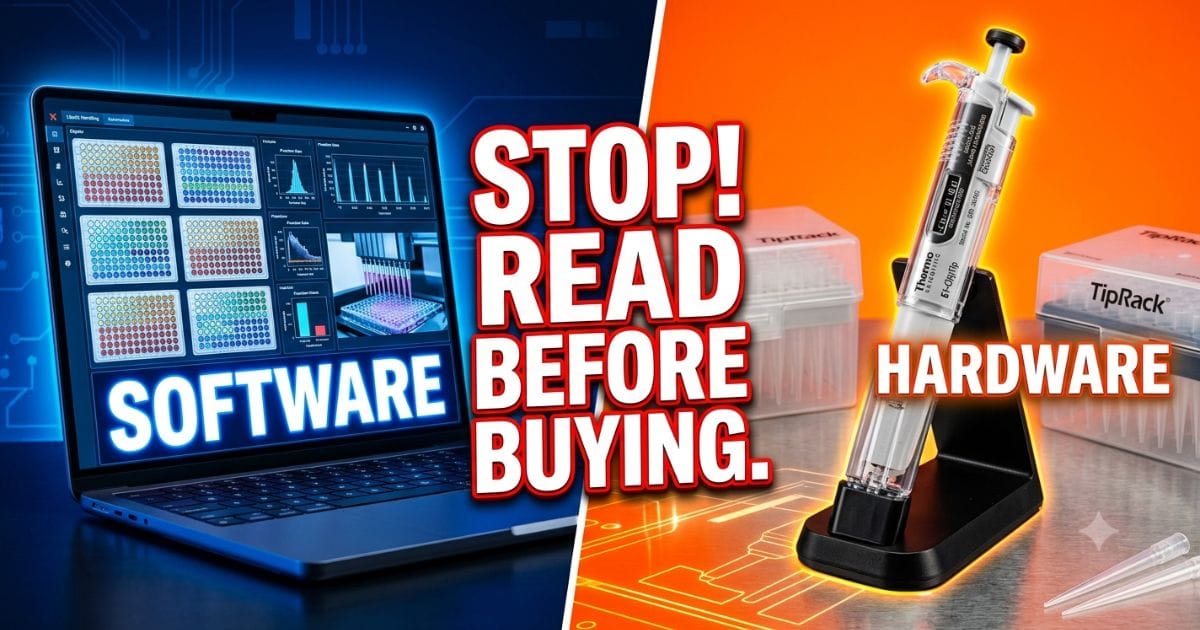
MyPipette is not one product. It is a name used by two different companies for two very different things.
Thermo Fisher Scientific makes software called My Pipette Creator and My Pipette Connect Utility. These tools let labs program electronic pipettes from a computer.
Gilson offers a service called MyPIPETMAN. It lets labs order manual pipettes with custom colors, engraved names, and personalized grips.
One is software. One is hardware. Knowing which you need saves a lot of time.
| Brand | Product | Type | Best For |
|---|---|---|---|
| Thermo Fisher Scientific | My Pipette Creator + Connect Utility | Software | Programming electronic pipettes digitally |
| Gilson | MyPIPETMAN Custom Builder | Hardware service | Personalizing manual PIPETMAN pipettes |
| Thermo Fisher Scientific | E1-ClipTip Electronic Pipette | Electronic pipette | High-throughput and regulated labs |
| Gilson | PIPETMAN Select | Manual pipette | Academic and GLP labs |
⚠️ FAKE SOFTWARE WARNING — READ BEFORE DOWNLOADING
Searching for terms like “MyPipette download” or “My Pipette software free” online is highly risky. Many third-party sites are fake and will secretly install malware or steal your private data..
Red flags — leave the site immediately if you see:
- A download link that is NOT on thermofisher.com
- A site asking you to register before downloading a “free version”
- A file named something like
mypipette_crack.exeor from a random domain- A pop-up saying your “pipette driver is outdated” — this is always fake
Only download from thermofisher.com. If you are unsure, call Thermo Fisher customer support before installing anything.
Thermo Fisher’s My Pipette Creator & Connect Utility: Complete Overview
What It Actually Does
My Pipette Creator is a free desktop application from Thermo Fisher Scientific. It lets lab users:
- Build step-by-step pipetting protocols — setting exact volumes, mixing steps, speeds, and pauses
- Save those protocols and share them with the whole team
- Load protocols directly into a connected electronic pipette with one click
- Browse a built-in library of ready-made protocols for common assays
My Pipette Connect Utility is the tool that links your computer to the pipette. Creator builds the protocol. Connect sends it to the device.
Without Connect, Creator has nothing to talk to. Both tools work together.
Compatible Pipettes & Hardware
My Pipette Creator and Connect Utility are built for Thermo Fisher’s electronic pipette lineup. Confirmed compatible models include:
- E1-ClipTip Electronic Pipette — single channel and multichannel versions
- E1-ClipTip Equalizer Pipette — for volume equalization across channels
- FluidEase Pro — check your exact model’s spec sheet, as compatibility varies
Always verify: Not every Thermo Fisher pipette works with this software. Go to thermofisher.com and search your exact model number before downloading anything.
Key Benefits for Labs
The biggest value is removing inconsistency from pipetting work.
- Standardization — every person on the team runs the exact same protocol, every time
- Reproducibility — results stay consistent across shifts and between different users
- Speed — no manual reprogramming; load a saved protocol in a few seconds
- Compliance support — digital protocol history helps with GLP, ISO, and audit requirements
- Team efficiency — one person builds the protocol once; everyone benefits immediately
How to Safely Download and Install My Pipette Connect Utility (Step-by-Step)
Official Download
Always start at the official website: https://www.thermofisher.com
On the site, search for: “My Pipette Connect Utility download”
Or go to: Products → Liquid Handling → Electronic Pipettes → Software & Support
Find your specific pipette model on the page. Download only the installer listed there.
How to spot the real page: The official download page always shows your pipette model name, the current software version number, and the file size. If any of those three things are missing — close the tab and go back to thermofisher.com directly.
Windows Installation Instructions
- Find the downloaded
.exeinstaller file in your Downloads folder - Right-click the file and choose “Run as Administrator”
- Click through the setup prompts and accept the license agreement
- Keep the default installation folder unless your IT team says otherwise
- Click Install — it usually finishes in under 3 minutes
- Restart your computer if the installer asks you to
- Open My Pipette Connect Utility from your desktop or Start Menu
System requirement: Windows 10 and Windows 11 are the currently supported versions. Check the release notes on thermofisher.com for the most current system requirements before installing.
Initial Setup: Region, Cloud Account, First Connection
After the software opens for the first time:
- Choose your region from the dropdown — this sets your default units and language
- Sign in with an existing Thermo Fisher account or create one for free
- A Thermo Fisher account is required for cloud backup and protocol sharing features
- Plug in or pair your pipette (see next section for full steps)
- The software will identify your pipette model automatically once connected
Loading the Protocol Library & Ready-Made Assays
Thermo Fisher includes a built-in protocol library with pre-built assay templates. To use them:
- Open the Protocol Library tab inside the software
- Filter by assay type: ELISA, PCR prep, serial dilution, cell culture, and others
- Select a protocol and click Load to send it to your connected pipette
- Adjust any volume values or timing steps to match your specific reagents
This library saves setup time — you do not need to build common assays from scratch.
How to Connect Your Electronic Pipette to My Pipette Creator
Bluetooth Pairing Step-by-Step
- Power on your E1-ClipTip or compatible Thermo Fisher electronic pipette
- Hold the Bluetooth button on the pipette for about 3 seconds — the indicator light will start blinking
- On your computer, open My Pipette Connect Utility
- Click “Scan for Devices” inside the software
- Your pipette’s name will appear in the device list — usually within 30 seconds
- Click Pair — the blinking light on the pipette will turn solid to confirm the connection
- The software will then show your pipette’s serial number and current firmware version
USB Fallback Method
Bluetooth not working? Use the USB cable instead.
- Use the cable that came with your pipette (Micro-USB or USB-C depending on your model)
- Plug the pipette directly into your computer
- Open My Pipette Connect Utility — it should detect the device automatically
- If it does not appear, go to Settings → Manual Device Search → USB and trigger a manual scan
USB is always more reliable than Bluetooth. When in doubt, start with the cable.
Troubleshooting Pairing Failures
Firmware mismatch warning: The software will tell you if your pipette’s firmware is too old. Update it via USB before trying to pair again (see the firmware section below).
Bluetooth missing from list: Make sure Bluetooth is turned on. Windows: go to Settings → Devices → Bluetooth → toggle On.
Pipette not detected at all: Keep the pipette within 1 meter of your computer. Move away from other active Bluetooth devices, metal shelving, or thick walls — all of these block the signal.
If pairing fails repeatedly: Clean the connection from scratch. Go to your Windows Bluetooth settings, find the pipette under saved devices, and click “Remove device.” Once it is gone, start the pairing process over again.
Fixing Common My Pipette Creator & Connection Errors
“Driver Connection Failed” / “Cannot Pair”
This error usually points to two things: the driver did not install correctly, or there is a USB port conflict with another device.
Fix it: Uninstall My Pipette Connect Utility fully. Restart your computer. Download the latest version from thermofisher.com and reinstall it. Then connect the pipette by USB first — confirm that works before trying Bluetooth.
Why is it freezing or syncing slowly?
This usually happens for three simple reasons:
- Your protocol file is too large.
- Your computer is running too many programs at once.
- Your Bluetooth signal is too weak.
Fix it: Close all other open programs before syncing. Move the pipette closer to your computer. If the freeze happens again, switch to the USB cable — transfers via USB are faster and more stable than Bluetooth.
Firmware Update Process
Outdated firmware causes most compatibility problems. Update it this way:
- Connect your pipette to your computer with the USB cable
- Open My Pipette Connect Utility
- Go to Settings → Device → Check for Firmware Update
- If a new version is listed, click Update Now
- Do not unplug the pipette or close the software while the update runs
- The pipette will restart on its own when finished
- Check the firmware version in the software — it should now show the new number
Advanced Troubleshooting Table
| Error Message | Most Likely Cause | Fix |
|---|---|---|
| “Device not found” | USB driver not installed | Reinstall the software; try a different USB port |
| “Firmware mismatch” | Pipette firmware is outdated | Update firmware via USB connection |
| “Protocol transfer failed” | Weak Bluetooth or corrupted file | Switch to USB; recreate the protocol if needed |
| “Cloud sync error” | No internet or session expired | Check your connection; log out and back in |
| “Software won’t open” | Corrupted installation files | Uninstall completely, restart, reinstall fresh |
| “Pipette not responding” | Low battery or dropped connection | Charge pipette fully; remove and re-pair it |
Gilson MyPIPETMAN: Customizing Manual Pipettes
What MyPIPETMAN Is
MyPIPETMAN is Gilson’s customization service for their classic PIPETMAN manual pipettes.
Standard PIPETMAN pipettes are sold in fixed colors with no personalization. MyPIPETMAN changes that. Labs can order pipettes that are built to their exact specifications:
- Chosen body colors from a set palette
- Engraved text — user names, lab IDs, volume labels
- Custom grip options on select models
Gilson makes the pipette to your order. This is not a software download. It is a physical product you design and buy.
Online Custom Builder
The MyPIPETMAN builder is at gilson.com. Here is how to use it:
- Pick your PIPETMAN model — options include P2, P10, P20, P100, P200, and P1000
- Choose a body color from the available options
- Type your engraved text — there is a character limit per line, shown on screen
- Select a grip style if your chosen model supports it
- Review the design using the on-screen preview tool
- Add to cart and place your order
Some customization options have minimum order quantities. Check the current Gilson website before ordering, as these details change.
How Customization Improves Lab Efficiency & Safety
Preventing cross-contamination: Color-coding stops people from using the wrong pipette by mistake. A blue pipette for RNA work and a red one for bacterial samples makes the difference visible instantly — no need to check labels.
Supporting traceability: An engraved name or lab ID makes it easy to know who owns which pipette. When a pipette goes for calibration or service, the record follows the device — not a paper tag that falls off.
Reducing volume errors: In busy shared labs, people often grab the wrong pipette by mistake. Having volume ranges permanently engraved on each pipette reduces that error significantly.
Cleaner calibration records: Named pipettes make it simple to track which device was calibrated, when, by whom, and what the result was. This matters for audits and GLP reviews.
MyPIPETMAN Select & Other Variants
- MyPIPETMAN Classic — the standard PIPETMAN with full color and text customization
- MyPIPETMAN Select — upgraded materials and improved ergonomics, fully customizable
- PIPETMAN M — This is a manual pipette that uses a little bit of battery power. Because of this, Gilson offers fewer custom choices for this specific model.
Visit gilson.com to see the current full range. Gilson updates its lineup regularly, so always check the site for the latest available models and customization options.
Thermo vs Gilson MyPipette Solutions: Which Should You Choose?
Side-by-Side Comparison Table
| Feature | Thermo Fisher My Pipette (Software + Electronic) | Gilson MyPIPETMAN (Custom Manual Hardware) |
|---|---|---|
| What it is | Software for programming electronic pipettes | Online service to customize manual pipettes |
| Primary function | Protocol building, digital management, cloud sharing | Color coding, text engraving, grip personalization |
| Needs a computer | Yes — for programming and syncing | Only for placing the order |
| Ongoing software updates | Yes | No |
| Supports automation workflows | Partial — protocol-level automation | No |
| Compliance record keeping | Digital logs via software | Manual paper or spreadsheet records |
| Cost structure | Software often free with hardware; pay for the pipette | One-time custom hardware purchase |
| Best lab type | High-throughput, multi-user, regulated | Academic, teaching, shared general-purpose labs |
Decision Guide by Lab Type
Small academic or research lab (under 5 people): Gilson MyPIPETMAN is the simpler choice. No software to manage, no cloud accounts. Color coding and engraving solve most tracking and mix-up problems quickly.
High-throughput clinical or pharma lab: Thermo Fisher My Pipette Creator with the E1-ClipTip is the right fit. Standardized digital protocols protect against variation when dozens of users run the same assay.
Regulated lab needing FDA or GLP compliance: Thermo Fisher. Digital audit trails and time-stamped protocol records support 21 CFR Part 11 requirements in a way manual records cannot match.
Teaching lab or student training environment: Gilson MyPIPETMAN. Engraved student names prevent mix-ups in high-turnover student settings. Lost pipettes drop when every device is clearly identified.
Lab running both high-volume assays and manual tasks: Use both. Thermo Fisher software handles the automated or repeated assay protocols. Gilson custom pipettes work well for manual backup pipetting and general bench tasks.
Maintaining Accuracy, Calibration & GLP Compliance
Why Electronic Tracking Matters
Paper calibration logs get lost. They can be backdated. They are hard to search. Digital tracking removes those problems.
My Pipette Creator creates a record every time a protocol runs — with a timestamp, device ID, and protocol details. That record is ready for inspection without any extra work.
Digital tracking directly supports:
- ISO 17025 — laboratory accreditation standard
- FDA GMP and GLP — good manufacturing and laboratory practice compliance
- CLIA — clinical laboratory standards in the US
- Research reproducibility — proof that experiments were run consistently
ISO 8655 Standards & Digital Logging Best Practices
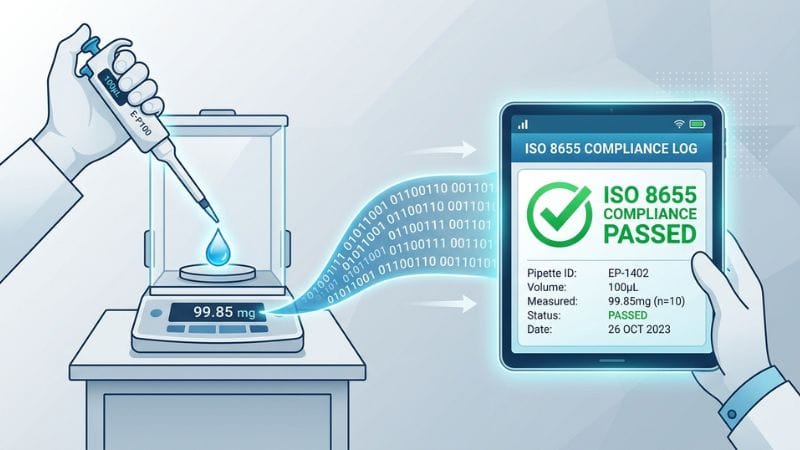
ISO 8655 is the global standard for piston-operated liquid handling instruments — including all pipettes.
It sets the acceptable limits for accuracy and precision across different volume ranges. A compliant calibration record must include:
- Pipette serial number
- Date of calibration
- Volumes tested
- Actual measured values compared to target values
- Pass or fail result for each volume tested
- Date the next calibration is due
My Pipette Creator saves your daily history, but it cannot do official lab testing records. To meet official ISO 8655 rules, you still need a LIMS or special calibration software. This software is necessary because it tracks gravimetric data (the exact weight of water drops) to prove your pipette is accurate.
How Often Should You Calibrate Your Pipette? (Easy Guide)
How often you need to test and fix (calibrate) your pipette depends on how much you use it and what kind of liquids you handle.
Here is a simple breakdown to help you decide your schedule:
| Daily Use Level | Liquid Type | How Often to Calibrate |
|---|---|---|
| Light — under 100 cycles per day | Water-based buffers | Every 6 months |
| Moderate — 100 to 500 cycles per day | Mixed lab reagents | Every 3 months |
| Heavy — over 500 cycles per day | Any liquid type | Every 1 to 2 months |
| Any level | Volatile solvents (acetone, ethanol) | Every 1 to 2 months |
| Any level | Corrosive or highly viscous liquids | After each significant use |
Quick Note: These times are just general rules. Always follow your own lab’s official handbook or any strict safety guidelines required for your specific work.
Pipette Asset Management Tips
- Give every pipette a unique asset ID number — engraving it with Gilson’s MyPIPETMAN makes it permanent
- Keep a central record for all pipettes: model, serial number, asset ID, assigned user, last calibration date, and next due date
- Book calibrations in advance — do not wait until results start drifting
- Store all pipettes upright on a stand — laying them flat with tips on causes contamination and damages the seal
- Send pipettes to a certified calibration service at least annually for regulated work
Advanced Tips: Maximizing MyPipette Tools in Your Lab
Team Protocol Sharing & Collaboration
My Pipette Creator lets you export protocols as files. Share them by email, network folder, or through the Thermo Fisher cloud platform.
To keep things organized across a team:
- Create one shared protocol folder on your lab network that everyone can access
- Name protocols clearly with a version number — for example,
ELISA_96well_v4— so no one accidentally uses an older version - Assign one person as the protocol manager who reviews and approves any changes before they go into the shared library
When protocols are managed this way, everyone is always working from the same source. New team members get up to speed faster.
Integrating with Other Lab Software
My Pipette Creator is not a full LIMS. But you can connect its data with other tools you already use.
Protocol export files can be imported into:
- Electronic lab notebooks (ELNs) — for attaching protocol records to experiments
- LIMS platforms — check Thermo Fisher’s documentation for your specific LIMS version
- Spreadsheets — for simple tracking when a full LIMS is not available
Want to connect this tool with your other lab programs? Contact Thermo Fisher support. Ask them which export file formats and API connections work with your software version.
Security Best Practices for Cloud Data
When your protocols live in the cloud, access control matters.
- Use a strong, unique password for your Thermo Fisher account — not one reused from another site
- Turn on two-factor authentication if the platform supports it
- Give each team member their own login — never share one account between multiple people
- Review the list of users with access to your shared protocol library every few months
- Keep a local backup of critical protocols on a secure internal server — cloud storage alone is not a recovery plan
Real Lab Examples: How These Tools Help
Here is how real lab teams use these tools to save time and stop errors:
Drug Factory Audits (Pharma QC): A quality control team used My Pipette Creator to track their daily work. When FDA inspectors came and asked for paperwork, the team instantly downloaded clean digital logs with exact time-stamps. They did not have to waste hours searching through messy paper files.
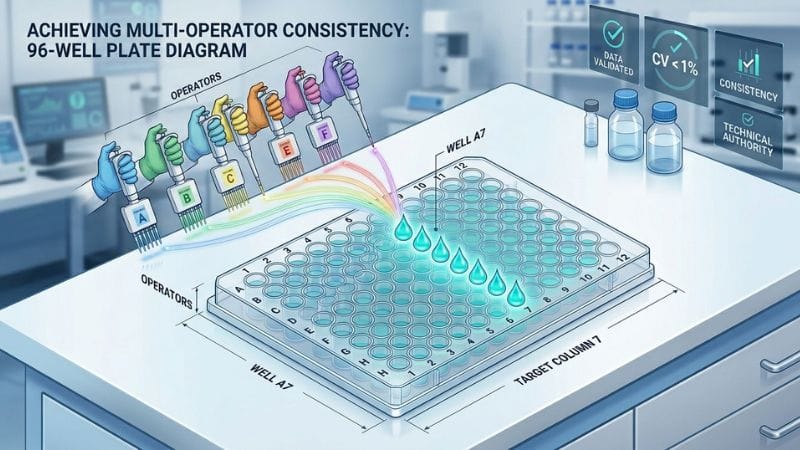
Testing Liquids (ELISA Plates): In one lab, 6 people were working on 96-well plates. But everyone pipetted a bit differently. A lead scientist made one master program in My Pipette Creator and shared it. All six pipettes ran the exact same steps. This stopped all human variation.
School and Student Labs: A college ordered 24 MyPIPETMAN pipettes. Every pipette had a student’s name and volume size permanently engraved on it. This completely stopped students from taking the wrong tools. It also made it super easy to see which pipette needed testing.
Real Answers to People Also Ask (PAA)
Is there a free MyPipette software download?
Yes, but only from the official site. Thermo Fisher gives you My Pipette Creator and Connect Utility for free when you buy their electronic pipettes. Only download from thermofisher.com. Never get it from third-party sites, as those are fake.
What is My Pipette Creator used for?
It lets you make, save, and send liquid-handling programs from your computer to your electronic pipettes. Teams use it so every single worker follows the exact same pipetting steps and volumes every time.
How do I connect an electronic pipette to a computer?
Open the My Pipette Connect app. Hold the Bluetooth button on your pipette until the light blinks, then click “Scan” in the app. If Bluetooth fails, just plug it in with a USB cable. The app will find it instantly.
What is the difference between Gilson PIPETMAN and MyPIPETMAN?
A standard PIPETMAN comes in regular factory colors. MyPIPETMAN is a custom service. The inside mechanism is the exact same, but Gilson lets you pick custom body colors, add engraved text (like names), and choose different grips before they build it for you.
Final Decision Guide: Getting Started with MyPipette Tools
📋 Pre-Download & Ordering Checklist
Thermo Fisher My Pipette Creator — Before you start
Gilson MyPIPETMAN — Before you order
Official Resources & Support Links
Need official help or software? Use these verified links:
- Thermo Fisher Scientific: Go to thermofisher.com
- What to search for: My Pipette Creator, My Pipette Connect Utility, or E1-ClipTip.
- Support: You can find phone numbers and live chat directly on their site.
- Gilson Website: Go to gilson.com
- What to search for: MyPIPETMAN or PIPETMAN Custom Builder.
- Support: They have support teams for North America, Europe, and Asia-Pacific.
⚠️ Final Security Check: Only download files or buy tools directly from thermofisher.com or gilson.com. If another website offers this software or cheap products, stop! Check if they are an official seller before giving them your money or info.
You May Also Like:
Toastul Meaning Explained: Origin, Romanian Use & Search Results
Is GDTJ45 Builder Software Real? The Definitive Review & Security Guide
Disclaimer: This guide uses public facts about Thermo Fisher and Gilson products. Tools, apps, and software versions can change over time. Always check the official factory websites before buying. Some helpful images in this article were created using AI to guide you visually. This site does not give official legal or safety advice for labs.

Hi, I’m Emma Rose, the creative heart of Punstation.com. With a background in crafting hundreds of engaging guides and clever wordplay, I specialize in making complex information easy and fun to digest. Whether I’m diving into technical trends, lifestyle hacks, or my signature witty puns, my goal is to provide high-quality, research-backed content that solves problems and brings a smile to your face. For me, every topic—from tech to humor—is an opportunity to share clear, expert insights with a fresh perspective.