
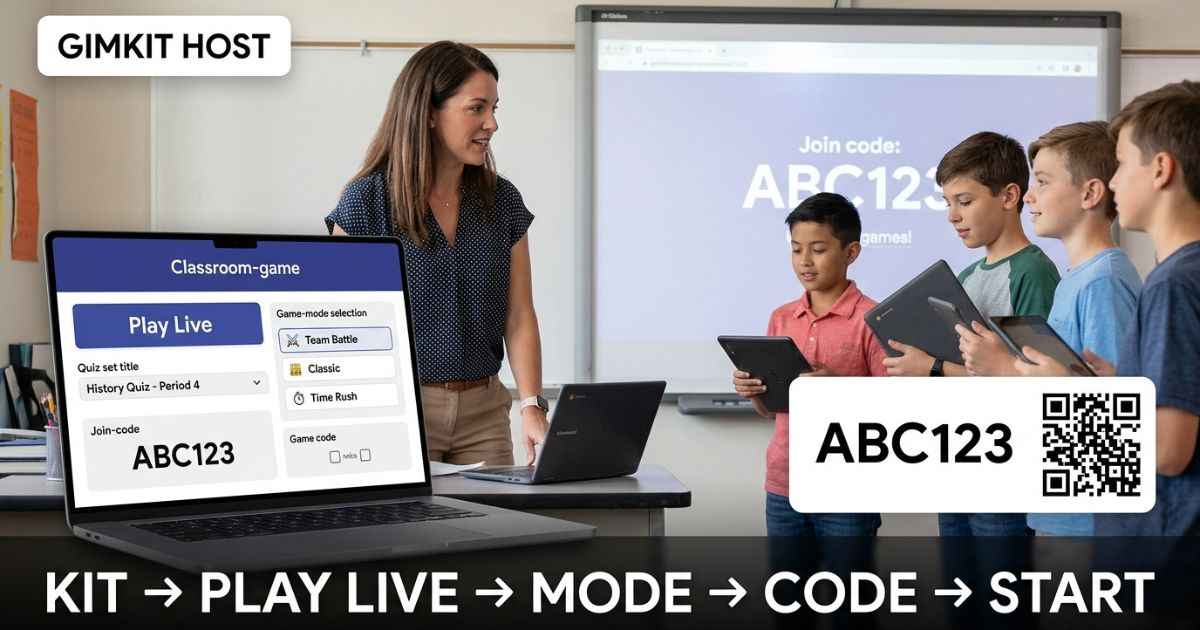
A Gimkit host is an educator or account holder who creates and manages a live Gimkit game. To host a game, choose a Kit, click Play Live, select a game mode, set the game options, share a game code, QR code, or join link, and start when players are ready.
Before starting, choose the right joining method, use safe player names, pick a mode that fits your class size, and test your network. These steps help the game run smoothly from the lobby to the final report.
How to Host a Gimkit Game: Quick 5-Step Guide
Here is the fastest way to host your first live game:
- Sign in to your Gimkit Educator account. You need an account to create Kits and host games.
- Choose a Kit. Use one you already own, or make a new Kit first.
- Click Play Live. Gimkit opens the Mode Picker so you can choose a game mode.
- Set your game options. Choose the settings that fit your class, including names, late joining, and the game goal.
- Share the game code, QR code, or join link. Wait in the lobby, check the player list, and click Start Game when you are ready.
That is the whole host workflow. The smart move is to spend a minute on the options before students enter.
Sign in with an educator account
You need a Gimkit account to create Kits and host games. Gimkit says Educator accounts are free to create. Student accounts are optional for normal live-game play.
This is an important difference. A teacher cannot host anonymously, but students usually do not need to make accounts just to join a live game.
Pick or create the Kit you want to use
A Kit is the question set used in your game. You can host a Kit you already own or create one before class.
You can also use public Kits as a starting point. If you copy a public Kit, you get your own version that you can edit. This is useful when you need to change a few questions instead of building a whole Kit from scratch.
One more detail matters after class: Gimkit says game reports are provided when you host a Kit that you own. That makes owning your review Kit useful when you want to study results later.
Click Play Live and choose a game mode
From your dashboard, click Play Live beside a Kit. You can also open the Kit and choose Play Live there. Gimkit then shows the Mode Picker.
Do not pick a mode only because it looks exciting. First ask three simple questions:
- How many students will join?
- How much class time do I have?
- Do I want quick review, teamwork, or a more open activity?
Your answer should guide the mode choice. Also check whether the mode is available on your plan before class.
Set game options before opening the lobby
The Game Options screen is where a Gimkit host sets the rules for the session. The exact choices depend on the game mode. Current options can include class connection, Nickname Generator, the game goal, and whether students may join late.
For a first-time host, keep your choices simple:
- Turn on Nickname Generator if you want safe, random names.
- Allow late joining if students may arrive after the game starts.
- Choose a clear game goal that fits your class period.
- Connect a Class when you want roster names and easier repeat use.
Gimkit’s Nickname Generator can assign random, safe names and stop students from entering their own names.
Share the code, QR code, or join link, then start
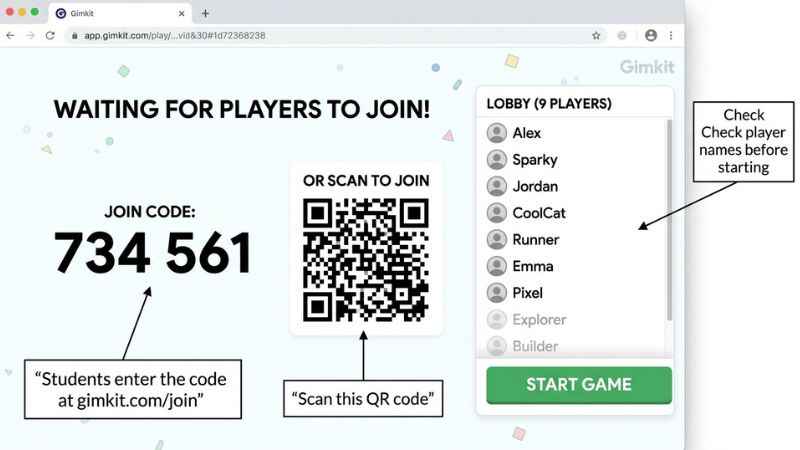
After you finish the options, Gimkit opens a Lobby with your game code. This is where students gather before the game begins. In non-2D games, you can check names and remove an inappropriate name before starting.
When everyone is ready, click Start Game.
For a classroom, it helps to put the host screen on a projector. Students can then see the code and QR code without asking you to repeat them.
How Students Join Your Gimkit Game
Students have several ways to enter a live Gimkit game. The best choice depends on where your class is playing.
| Method | Best for | What students do | Host tip |
|---|---|---|---|
| Game code | Whole-class rooms | Go to gimkit.com/join and enter the active code | Keep the code on screen |
| QR code | Phones and tablets | Scan the QR code on your host screen | Hover over the game code to show it |
| Join link | LMS, chat, or remote class | Open the direct link you share | Good for video-call chat |
| Classes | Regular classes | Use the class joining workflow | Students can join the live game automatically when using Classes |
Gimkit confirms that students can join by QR code, join link, or game code. Without Classes, students can visit gimkit.com/join and enter the code. With Classes, logged-in students can join the game automatically through the class workflow.
Do students need a Gimkit account?
No. Students do not need an account for standard live-game participation. They can use the code, QR code, or join link instead.
Accounts become more useful when you use features such as Classes. A class can keep student names tied to your roster and make repeat joining easier.
How to keep the lobby organized
The lobby gives you one last chance to fix small problems before the game starts.
Check the player names first. If you want tighter name control, turn on Nickname Generator before students join. In non-2D games, you can remove players with inappropriate names from the lobby.
For younger students, this simple check can save you from stopping the game later.
What a Gimkit Host Can Control During a Live Game
A Gimkit host does more than press Start Game. During play, the host can use the game controls to manage the session and watch what is happening.
Current host controls can include the game code, player information, leaderboard display, sound controls, and the option to end the game. The exact controls can vary by mode.
That means the host should stay on the host screen instead of treating the game as fully automatic.
Host as a player or spectator in 2D modes
In 2D game modes, you can choose to join as a player or a spectator. As a spectator, you can watch students without taking part in the action. As a player, you can enter the game yourself.
For teaching, spectator mode can be useful when you need to watch the class and manage the game at the same time.
Manage players, sound, leaderboard, and game ending
During a live game, the host controls give you a few key jobs. You can view players, show the leaderboard, adjust music and sound effects, and end the game when needed.
You can also add time in supported games. In live 2D games, each click adds one minute. A game can last up to 59 minutes.
The exact buttons can move or change as Gimkit updates modes. Check the host screen before class instead of relying on an old screenshot.
Gimkit Basic vs Pro for Hosting
You can host Gimkit for free. Gimkit Basic is the free Educator plan, and it supports live hosting, Classes, and game reports. The tradeoff is that Basic does not include every game mode.
Pricing and feature access can change, so check Gimkit’s official plan pages before buying.
What you can do on Gimkit Basic
Basic lets you play featured game modes, use Classes, and collect reports. Gimkit says the free modes rotate, so you should check the Mode Picker before class instead of assuming a certain mode will always be free.
This works well for teachers who mainly need a simple live review game.
What Gimkit Pro adds
Gimkit Pro unlocks all game modes instead of only the featured free modes. It also adds Assignments, plus the ability to upload images and add audio to questions.
Gimkit’s current listed prices are $14.99 per month or $59.88 per year.
Hosting limits: live games, 2D games, and Pro-exclusive modes
Player limits depend on the type of game:
| Hosting situation | Current limit |
|---|---|
| Regular live game | 500 players |
| 2D game mode | 60 players |
| Basic account using a Pro Exclusive mode | 5 players |
Gimkit says the overall live-game hard limit is 500 players, while all 2D modes have a 60-player hard limit. Basic users can use Pro Exclusive modes with up to five players.
A large class also needs a strong connection. Gimkit notes that more players require a faster, more reliable internet connection.
Before You Host: 7-Point Classroom Checklist
A smooth Gimkit host session starts before students touch their devices.
- Check that you picked the correct Kit.
- Make sure the game mode fits your class size.
- Test the game options you plan to use.
- Open the host screen before students arrive.
- Decide whether students will use a code, QR code, or link.
- Decide how you will handle names and late joining.
- Have a backup activity ready in case the school network fails.
For a large class, do the compatibility test before the lesson. It is much easier to fix a school network problem before 30 students are waiting.
Gimkit Host Troubleshooting: Fast Fixes
Most problems fall into one of four areas: the code, the device, the school network, or Gimkit itself.
| Symptom | Likely cause | Fast fix |
|---|---|---|
| Code says “not found” | The session is closed or the wrong code was used | Use the active code from the host lobby |
| Students cannot load the game | Browser or connection problem | Run the compatibility test |
| Many students fail at once | School network or firewall issue | Run gimkit.com/check and contact school IT if tests fail |
| Game feels slow with a big class | Too many players or weak connection | Check the mode limit and reduce the group size |
| Nothing seems to work | Gimkit may be having an outage | Check the official status page |
The game code says not found or does not work
First, look at the host lobby. Make sure students are using the current code from the active game.
A game code belongs to that live session. Sharing an old code from a past game will not put students into the new session. When in doubt, use the current join link or QR code shown by the host.
Students cannot join or the game will not load
Start with the device. Make sure students have a working internet connection.
Then run Gimkit’s compatibility test at gimkit.com/check. Gimkit says the test checks whether the connection can support the service.
If many students fail the same test on a school network, the issue may be the firewall or proxy. Gimkit says schools may need to allow its game-server domains and secure WebSocket connections.
That is a good point to contact your school’s IT team instead of changing random classroom settings.
The game has too many players or performs poorly
Check the player limit for the mode first. Regular live games allow up to 500 players, but 2D modes stop at 60. Basic users also face a five-player limit when using a Pro Exclusive mode.
If your class is large, split students into smaller groups or choose a mode that fits the class size.
Gimkit may be down
Before you restart every device, check the Gimkit Status page. Gimkit’s own troubleshooting guide recommends checking the status page first, then running the compatibility test.
That simple order matters. It tells you whether the problem is likely in your classroom or on Gimkit’s side.
After the Game: Use Reports to Plan the Next Lesson
A Gimkit game can tell you more than who won. If you host a Kit that you own, Gimkit provides a game report with class and individual data. You can view the report after the game or later from the Reports area.
The report includes a Student Overview, General Overview, and Question Breakdown. Use the question breakdown to find topics that many students missed.
For example, if most students miss questions about fractions, that is a clear sign to review fractions again. The best use of a Gimkit host session is not the game itself. It is what you do with the results afterward.
Gimkit Host FAQs
Can a student host a Gimkit game?
Yes, Gimkit has Student accounts, and its help documentation says student logins can host games with a maximum of five players. Student accounts can host up to five players. Educator account limits depend on the selected mode and plan.
Can I host Gimkit without logging in?
No. Gimkit says you need an account to create Kits and host games. You can make the Educator account for free, while Pro is an optional paid plan.
Can students join Gimkit without an account?
Yes. Standard live-game players can join without creating a Gimkit account. They can use the game code, QR code, or join link from the host.
How many players can join a Gimkit game?
Regular live games have a hard limit of 500 players. All 2D game modes have a separate 60-player limit, so a large class should check the mode before starting.
Can I host Gimkit for free?
Yes. Gimkit Basic is free for Educators and includes live hosting, Classes, and reports. Basic has access to featured game modes, while Pro unlocks all modes and adds features such as Assignments, images, and audio.
Why can’t my students use a Gimkit code?
Make sure the game is still open and that students are using the current code. They can also use the QR code or join link shown on the active host screen.
Can I host Gimkit remotely?
Yes. A host can share the Gimkit join link or game code through a video-call chat. Students still need access to Gimkit, so check the compatibility test before a remote lesson.
What is the difference between a live Gimkit game and an Assignment?
A live game happens together at the same time, with the host running the session. An Assignment lets students complete a Kit on their own time, and Gimkit lists Assignments as a Pro feature.
You May Also Like:
Voozon.com Review: What It Is, How Guest Posting Works, and What to Check Before You Pay
VocalNewsMedia Com: What It Is, Which Domain Matches the Search Term, and How to Check if It Is Trustworthy
Accuracy Note: Gimkit may change its pricing, game modes, features, player limits, and interface over time. This guide is based on current official Gimkit information, but some steps or details may change. Check the official Gimkit Help Center for the latest information before hosting a game. Featured and illustrative image in this article may be AI-generated and are intended for visual explanation only; they do not represent exact Gimkit screens or current interface elements.

Hi, I’m Emma Rose, the creative heart of Punstation.com. With a background in crafting hundreds of engaging guides and clever wordplay, I specialize in making complex information easy and fun to digest. Whether I’m diving into technical trends, lifestyle hacks, or my signature witty puns, my goal is to provide high-quality, research-backed content that solves problems and brings a smile to your face. For me, every topic—from tech to humor—is an opportunity to share clear, expert insights with a fresh perspective.