
Geometry used to mean staring at a textbook. You read a rule. You looked at a static picture. And somehow, you were supposed to understand it.
Geometry Learn V3 changes that. It is a browser-based interactive platform that lets you drag shapes, move angles, and watch geometry rules happen in real time. No download needed. No complicated setup.
Whether you are a student trying to pass a test, a teacher looking for better classroom tools, or a parent helping at home — this guide covers everything you need to know.
1. What Is Geometry Learn V3 and Who Is It For?
Geometry Learn V3 is an interactive, browser-based geometry learning platform. It lets students explore shapes, angles, measurements, and 3D figures by actually moving them — not just reading about them.
Instead of a static diagram, you get a live shape on your screen. You drag a corner. The angle changes. The numbers update instantly. That one moment teaches more than a paragraph ever could.
The platform is built around the idea that geometry is a visual subject. When you can see something change in real time, you understand the rule behind it faster.
Who is it for?
- Middle school and high school students (roughly grades 5–12)
- Homeschoolers who want hands-on practice
- Teachers who want interactive classroom supplements
- Adults reviewing geometry for tests like the SAT or GED
- Anyone who struggled with geometry using only textbooks
It requires only a modern web browser. No app download, no account sign-up just to explore.
2. How It Works: 2D vs 3D Interactive Geometry
Geometry Learn V3 covers two big areas: 2D (flat shapes) and 3D (solid shapes).
2D Geometry
Think of a flat piece of paper. 2D geometry works on two directions — left-right and up-down. These are called the x-axis and y-axis.
On the platform, you can:
- Draw triangles, circles, squares, and polygons
- Move points along a coordinate grid
- Adjust angles and watch the shape respond
- Measure lengths and see how perimeter changes
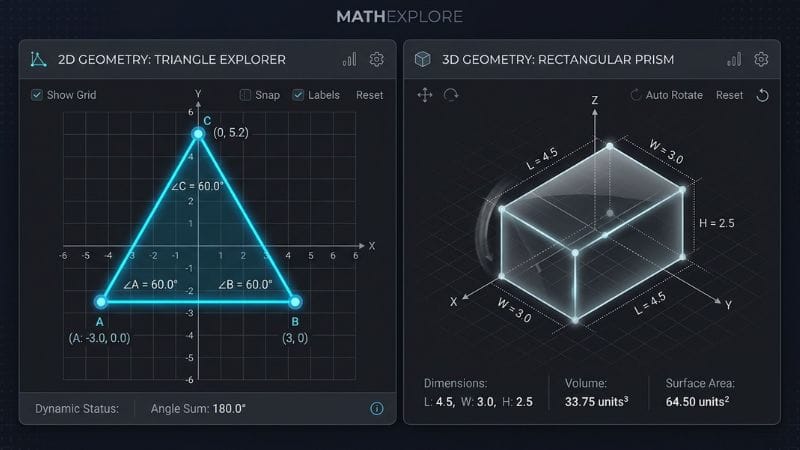
Try this: Place a triangle on the canvas. Drag one corner. Watch the three interior angles change — but their total always stays 180°. That is not a coincidence. That is the Triangle Angle Sum rule, and now you have seen it happen.
3D Geometry
3D geometry adds a third direction: depth. This is the z-axis. Shapes now have length, width, and height.
The platform lets you:
- Rotate cubes, prisms, and spheres
- See how a net (flat cutout) folds into a 3D shape
- Measure volume and surface area as you change the dimensions
Try this: Change the height of a rectangular prism. Watch the volume number increase. Then think about why — that is exactly what the formula V = l × w × h describes.
3. Key Formulas You Will Practice (With Real-Time Feedback)
Every formula feels abstract until you see it in action. Here is how Geometry Learn V3 connects formulas to live interaction:
| Shape | Formula | What You Can Do in the Tool |
|---|---|---|
| Triangle Area | A = ½ × base × height | Drag the height up or down. Watch the area number change. |
| Pythagorean Theorem | a² + b² = c² | Resize two sides. See if the hypotenuse updates correctly. |
| Circle Area | A = π × r² | Drag the radius. Watch how fast the area grows. |
| Circle Circumference | C = 2 × π × r | Same drag — see both area and circumference update together. |
| Rectangle Area | A = length × width | Stretch one side. Watch the product change instantly. |
| Volume of a Cube | V = s³ | Grow the cube. See volume increase in real time. |
| Volume of a Cylinder | V = π × r² × h | Adjust radius or height. See which change matters more. |
| Surface Area of a Sphere | SA = 4 × π × r² | Scale the sphere. Understand why surface area grows so fast. |
The goal is not just to memorize these. It is to feel what each variable does. That understanding sticks much longer than a formula on a flashcard.
4. Step-by-Step: How to Start in Under 2 Minutes
You do not need to be a tech expert. Here is how to begin:
Step 1: Open your browser Chrome works best for this type of browser-based tool. Firefox and Edge also work well. Safari may have minor performance differences depending on your device.
Step 2: Search for Geometry Learn V3 Type “Geometry Learn V3” into your search bar and open the official platform. No account is required to start exploring basic features.
Step 3: Choose a shape Start simple. Pick a triangle or a rectangle from the shape menu. It will appear on the canvas.
Step 4: Drag a point Click and drag any corner or point on the shape. Watch what changes. Angles, lengths, and area values update instantly.
Step 5: Try the formula view Most interactive geometry tools show the formula alongside the shape. Try changing one value and predict the result before the screen updates. Then check if you were right.
On mobile: The tool is browser-based, so it opens on phones and tablets. For dragging and placing points, a larger screen (tablet or laptop) gives you much better control. Small phone screens can make precise dragging tricky.
Chrome tip: If anything looks slow or broken, check that your browser is updated. Older browser versions sometimes struggle with real-time rendering.
5. Geometry Learn V3 vs GeoGebra, Desmos & Other Tools: Honest Comparison
Many interactive geometry tools exist. Here is an honest look at how Geometry Learn V3 fits next to the most popular ones:
| Feature | Geometry Learn V3 | GeoGebra | Desmos | Mathigon |
|---|---|---|---|---|
| Best for | Visual shape exploration, beginners | Full geometry + algebra + calculus | Graphing and algebra | Concept discovery, storytelling |
| 3D support | Yes | Yes (via 3D Graphing) | Limited | Limited |
| Ease of start | Very easy | Moderate learning curve | Very easy | Easy |
| Game elements | Yes | Minimal | None | Some |
| Free access | Yes (core features) | Yes | Yes | Yes |
| Mobile use | Good for basics | Full-featured | Excellent | Good |
| Teacher tools | Basic to moderate | Strong | Strong | Moderate |
| Offline use | Requires internet | Downloadable app available | Requires internet | Requires internet |
When to pick Geometry Learn V3:
- You want quick, visual shape practice
- You are a beginner and want something game-like
- You need to understand why a formula works, not just memorize it
- You want no-signup instant access
When to pick GeoGebra:
- You need full construction tools (compass and straightedge style)
- You are doing advanced proofs or algebra-geometry crossover work
- Your school already uses it
When to pick Desmos:
- You are graphing equations more than drawing shapes
- Your main focus is algebra or functions
Both GeoGebra and Desmos are free. Both are trusted in schools worldwide. Geometry Learn V3 fills a more casual, entry-level, exploration-first space.
6. Real-World Uses: Games, Design, and Everyday Problem Solving
Geometry is not just for tests. Here is where it shows up in real life — and how practicing with an interactive tool prepares you for these situations.
Game Design and Collision Detection
Video games use geometry constantly. Every time a character bumps into a wall, the game uses collision detection — a system that checks if two shapes overlap. Triangles, circles, and rectangles are used because they are easy to calculate quickly.
Practicing with 2D shapes in Geometry Learn V3 gives you the spatial thinking game developers actually use.
Web and Graphic Design
SVG (Scalable Vector Graphics) files — the kind used in logos, icons, and website buttons — are built entirely from geometric shapes and coordinates. Understanding how points and curves work helps you design cleaner, sharper graphics.
Architecture and Construction
Measuring a room, planning a floor layout, or figuring out how much tile you need — all of this uses area and perimeter. Understanding volume helps when calculating material quantities.
Physics and Science
Trajectories, orbits, and force diagrams all use geometry. The arc of a thrown ball is a parabola. The path of a satellite is an ellipse. These shapes appear in real physics problems — and understanding their properties makes science easier.
Art and Perspective
Perspective drawing uses vanishing points, angles, and proportional geometry. Artists who understand these principles draw more accurately by eye.
7. Common Beginner Mistakes — and How Interactive Tools Fix Them
Most geometry struggles come from the same few mistakes. Here is what they are, and how visual practice corrects them.
Mistake 1: Confusing area and perimeter
Students often mix these up because both involve a shape’s measurements.
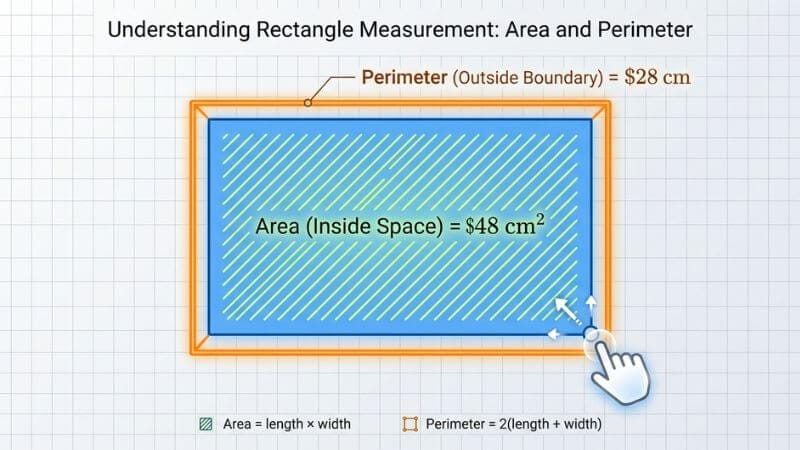
Area is the space inside a shape. Perimeter is the distance around it.
In an interactive tool, you can see area as the filled region and perimeter as the outline border. When you stretch a rectangle, both change — but differently. Watching that happen makes the difference obvious.
Mistake 2: Thinking all triangles behave the same
A scalene triangle, an isosceles triangle, and an equilateral triangle all follow the same angle sum rule (180°). But they behave very differently when you drag their sides.
Experimenting with all three in the same tool makes these differences permanent in your memory.
Mistake 3: Not understanding what the height of a triangle means
In the formula A = ½ × base × height, “height” does not always mean the side of the triangle. It means the perpendicular distance from the base to the opposite corner.
This confuses students who only see the formula written down. But drag the apex of a triangle in an interactive tool, and you can see the height line adjust accordingly.
Mistake 4: Forgetting that 3D shapes have two measurements (surface area and volume)
Surface area = the outside wrap. Volume = the inside space.
These feel abstract until you rotate a prism and see the difference between wrapping it in paper (surface area) versus filling it with water (volume).
Mistake 5: Memorizing formulas without understanding variables
Memorized formulas disappear under test pressure. Understanding what each variable does does not.
When you drag a radius and watch the circle area quadruple, you understand why r is squared in the formula. That understanding survives an exam.
8. Tips for Teachers, Parents, and Exam Prep
For Teachers
Use it as a visual aid during lessons. Instead of drawing a shape on the board, project the interactive canvas. Let students take turns dragging points and predicting outcomes.
Assign exploration tasks. Ask students to find what happens to a triangle’s area when you double its base. Let them discover the answer before you explain it.
Combine with written work. Interactive tools build intuition. Pencil-and-paper problems build precision. Both matter. Use the tool to introduce concepts, then follow up with written exercises.
Classroom integration: Geometry Learn V3 is browser-based, so it works on any school Chromebook, laptop, or shared computer without software installation.
For Parents
Sit with your child for the first session. Ask questions: “What do you think will happen if you drag this corner?” It turns passive watching into active thinking.
Use it alongside homework. When a homework problem involves a concept your child does not understand, try recreating it on the interactive canvas first.
Keep sessions short and focused. 15–20 minutes of focused exploration beats 2 hours of passive watching.
For Exam Prep
SAT and state standards (like Common Core): Geometry Learn V3 covers core visual concepts — angles, triangles, circles, coordinate geometry, and 3D shapes — that appear on standardized tests.
What it does not replace: For formal proofs (writing “Statement: angle A = angle B, Reason: Vertical angles”), you still need guided instruction. The tool builds visual understanding. Proofs require logical written structure. Both matter for high school exams.
Use it for review: Before a test, recreate each type of problem on the canvas. Seeing the shape one more time refreshes your memory faster than re-reading notes.
9. Limitations and Troubleshooting
No tool is perfect. Here is what Geometry Learn V3 does not do well — and what to do instead.
It Requires an Internet Connection
The platform runs in your browser and needs an active connection. There is no current full offline mode for the interactive features.
Workaround: For offline practice, GeoGebra has a downloadable desktop app that works without internet.
Mobile Precision Is Limited
On small phone screens, dragging specific points is hard. Fingers cover the canvas and make fine adjustments difficult.
Workaround: Use a tablet with a stylus, or switch to a laptop for detailed work. The tool still works on phones for viewing and basic interaction.
It Does Not Replace Formal Instruction
Geometry Learn V3 builds intuition and visual understanding. It does not teach formal proofs, mathematical writing, or the logical structure of geometry arguments.
Workaround: Use it alongside your textbook and teacher. The tool helps you see; the class helps you write and reason formally.
Browser Performance Issues
Older browsers or devices with low memory may experience slow rendering.
Fix: Update your browser to the latest version. Chrome generally performs best. Close extra tabs to free up memory. If shapes are not moving smoothly, try refreshing the page.
What Grade Levels Are Best Covered?
The platform works best for grades 5–10 (roughly ages 10–16). Very advanced topics like formal geometric proofs, higher-dimensional geometry, or pre-calculus-level coordinate geometry may require supplementary resources.
10. Frequently Asked Questions
Is Geometry Learn V3 free?
Most core features are accessible for free through browser access. Some sources describe premium or extended features, but the basic interactive exploration tools are widely available without payment or account creation.
Does Geometry Learn V3 work on phones and tablets?
Yes, it is browser-based and opens on most mobile devices. A tablet or laptop gives the best experience because dragging points precisely is easier on a larger screen.
What is the difference between Geometry Learn V3 and GeoGebra?
GeoGebra is a more powerful, full-featured tool used in advanced classrooms. It has stronger construction tools and downloadable apps. Geometry Learn V3 is more beginner-friendly, game-like, and quick to start — better for exploration and visual learning at earlier levels.
Can I use Geometry Learn V3 to help with homework?
Yes. It is especially useful for visualizing concepts you are confused about. Recreate the shape from your homework problem on the canvas and experiment with it.
What topics does Geometry Learn V3 cover?
Reported topics include angles, triangles, circles, polygons, coordinate geometry, transformations (rotation, reflection, translation), 3D shapes (prisms, cylinders, spheres), area, perimeter, volume, and surface area.
Do teachers use it in classrooms?
Yes. The browser-based format means it works on school Chromebooks and laptops with no software installation. It is used as a visual aid during lessons and for student exploration assignments.
Is Geometry Learn V3 safe for kids?
The platform focuses on educational content. It does not require personal information for basic use. Parents and teachers should preview any tool before student use, as with any online resource.
Do I need to create an account to use Geometry Learn V3?
Basic exploration features do not require an account. You can open the platform and start using shapes immediately. Some extended features or progress-saving functions may ask for registration.
Final Takeaway
Geometry makes more sense when you can see it move.
Geometry Learn V3 gives you that — a visual, hands-on space to explore shapes, test formulas, and build the kind of understanding that actually stays with you. It is not a replacement for your teacher or your textbook. It is the thing you use when a concept is not clicking yet.
Drag a triangle. Change an angle. Watch 180° hold no matter what you do. That moment — right there — is worth more than three readings of the same rule in a textbook.
Start with something simple. Build from there.
You May Also Like:
Prosecchini: What Are These Mini Prosecco Bottles? Complete 2026 Guide
Wifekivers Meaning: What This Viral 2026 Slang Really Means for Modern Relationships
Disclaimer: We want to help you learn! This guide is for educational use only. We are not partners with the official app makers. To make things fun and easy to understand, some pictures and diagrams on this page were made using AI tools. Always double-check your school homework with your teacher or a math textbook!

Hi, I’m Emma Rose, the creative heart of Punstation.com. With a background in crafting hundreds of engaging guides and clever wordplay, I specialize in making complex information easy and fun to digest. Whether I’m diving into technical trends, lifestyle hacks, or my signature witty puns, my goal is to provide high-quality, research-backed content that solves problems and brings a smile to your face. For me, every topic—from tech to humor—is an opportunity to share clear, expert insights with a fresh perspective.